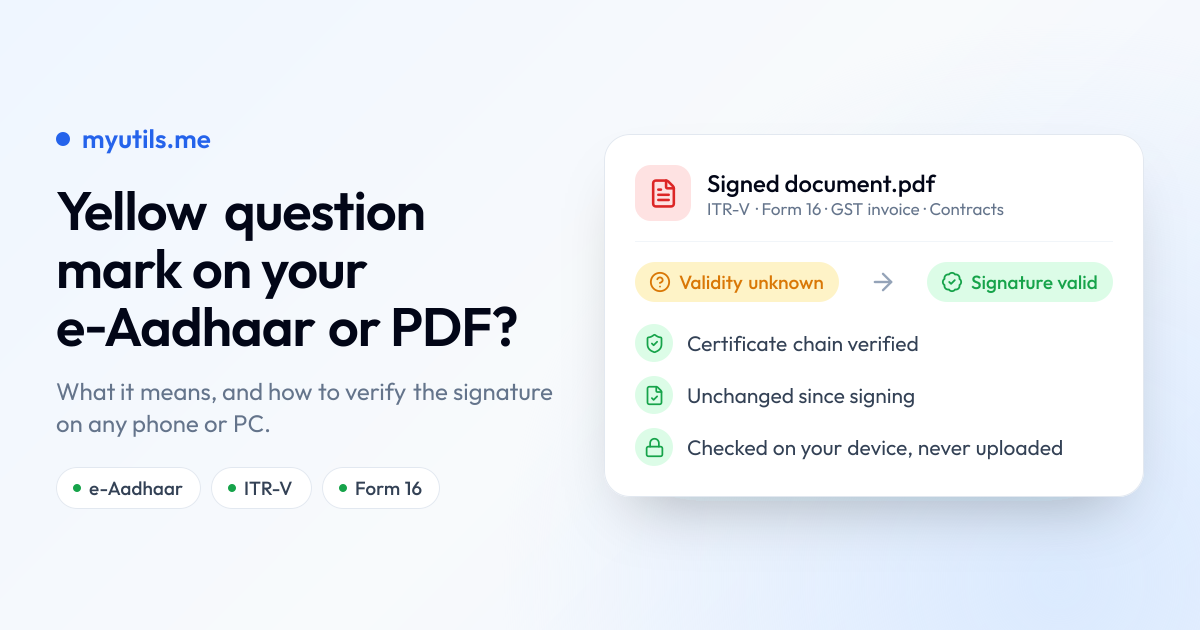

You download your e-Aadhaar, an ITR-V or a Form 16, open it, and instead of a reassuring green tick the signature says "Validity Unknown" with a yellow question mark. Nothing is wrong with the document. Your PDF viewer just can't confirm who signed it.
This guide explains what the three signature states mean, why government PDFs so often show the question mark, and how to verify them on a phone or computer, with our free e-Aadhaar verifier or the PDF signature verifier for any other document.
What the Yellow Question Mark Means
A digitally signed PDF carries a certificate from whoever signed it, such as UIDAI, the Income Tax Department or TRACES. Your viewer checks that certificate against a list of authorities it already trusts, called its trust store. What it shows depends on how far that check gets:
| What you see | What it means |
|---|---|
| Green tick (✔) "Signature valid" | The document is unchanged since it was signed, and the signer's certificate chains up to an authority the viewer trusts. |
| Yellow question mark (?) "Validity unknown" | The document may be fine, but the viewer can't confirm who signed it because it doesn't trust the authority at the top of the chain. |
| Red cross (✘) "Signature invalid" | The document was changed after signing, or the certificate itself is broken. Don't rely on it. |
Indian government documents are signed with certificates issued under the Controller of Certifying Authorities (CCA) India. Most PDF viewers on phones, Macs and browsers don't include the CCA India root certificate, so they stop at the question mark even when the signature is perfectly valid.
Which Documents This Affects
Almost any digitally signed PDF from an Indian authority, including:
- e-Aadhaar downloaded from UIDAI, including masked Aadhaar
- ITR-V acknowledgements and intimation orders under section 143(1)
- Form 16, Form 16A and Form 27D from TRACES
- GST invoices, credit notes and e-way bills
- DigiLocker certificates, degree certificates and marksheets
- MCA and ROC filings, and contracts signed with a Class 2 or Class 3 DSC

When You Need the Green Tick
For most everyday use, the original PDF is enough. The green tick matters when someone checks the printout: passport offices, banks, visa applications and some employers may want to see that the signature on your e-Aadhaar or ITR-V was verified as valid.
How to Verify e-Aadhaar
- Open the e-Aadhaar verifier on your phone or computer.
- Select the e-Aadhaar PDF you downloaded from UIDAI.
- Enter the PDF password: the first four letters of your name in capitals, followed by your year of birth. For example, SURESH KUMAR born in 1990 is
SURE1990. If your name is shorter than four letters, use it as is (RIA born in 1990 isRIA1990). - The tool checks the signature against the CCA India chain and shows whether it is valid, with the signer's certificate details.
- Download the verified copy to print. It shows the green tick on paper.
The e-Aadhaar verifier knows UIDAI's password rules, so it's the quickest option for Aadhaar.
How to Verify Any Other Signed PDF
For an ITR-V, Form 16, GST invoice or any other signed document, use the PDF signature verifier. The steps are the same: select the PDF, enter its password if it has one, and the tool validates every signature in the file and shows who signed it and when.
Is It Safe to Upload My Aadhaar?
You don't upload it. Both tools run entirely in your browser: the file, its password and the verification never leave your device, and nothing is stored on a server.
Things to Know About the Verified Copy
- It's for printing. The verified copy has its digital signature removed so the green tick prints reliably, which also means it can't be checked again as a signed document. To share a document digitally, by email or on a portal, send the original PDF you were issued.
- A red cross is different. If the original PDF shows a red cross, the tools won't turn it green. Download a fresh copy from the source (UIDAI, the Income Tax portal or TRACES) and check again.
- The manual way works too. On a Windows or Mac computer with Adobe Acrobat Reader, you can open the signature's properties, mark the signer's certificate as trusted and validate again. It takes a few steps per document and isn't possible on most phones, which is why the browser tools exist.
Frequently Asked Questions
Is the yellow question mark a sign that my e-Aadhaar is fake?
No. It only means your PDF viewer doesn't trust the authority that issued UIDAI's certificate. Verifying the signature against the CCA India chain shows whether it's genuine.
Does verification work on iPhone and Android?
Yes. Both the e-Aadhaar verifier and the PDF signature verifier work in any modern mobile browser, with no app to install.
Is it free?
Yes. There's no sign-up and no limit on how many documents you verify.

myutils.me
Official editorial and compliance research team at myutils.me, building automated tools for income tax return tracking, AIS/TIS reconciliation, and direct tax workflows.