
Salary slips and offer letters are easy to edit. The figures in a candidate's Income Tax records are not: their Annual Information Statement (AIS), Taxpayer Information Summary (TIS) and filed returns come straight from the Income Tax Department.
With employer verification on myutils.me, you ask a candidate to share selected parts of those records, and they decide what to send. This guide explains how it works for employers and for candidates.

What You Can Request
Each request is made of categories. You mark each one Required or Optional: required ones must be shared, optional ones are the candidate's choice.
| Category | What it contains | Source |
|---|---|---|
| Personal information | Name, email, mobile, date of birth, gender, address and the last 4 digits of Aadhaar | Income Tax portal profile |
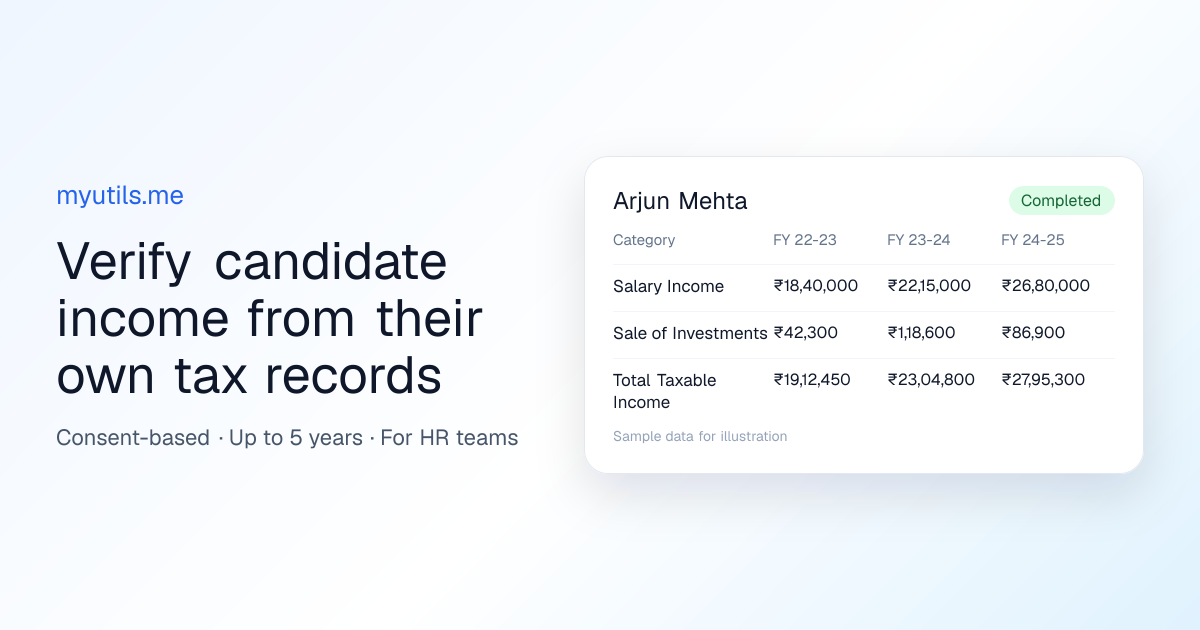
| Salary Income | Salary reported by employers | AIS/TIS |
| Business & Profession Income | Business receipts, professional fees and commission | AIS/TIS |
| Sale of Investments & Property | Amount received from selling shares, mutual funds, land, buildings and crypto (not the gain) | AIS/TIS |
| Rent Received | Rent reported for the candidate | AIS/TIS |
| Income from Other Sources | Interest, dividends, business-trust distributions and online game winnings | AIS/TIS |
| Total Taxable Income | Taxable income in the filed return, after deductions | Filed return |
You also choose 1 to 5 years of history. The current financial year counts as one of them and is marked so far, because AIS/TIS fill in during the year and no return can be filed until it ends.
For Employers: Step by Step
1. Set Up Your Company Workspace
Go to For Employers and sign up. Add your company details, and your workspace is ready. It is free to use.
2. Invite Your Team
From Team, invite colleagues by email and give each a role:
- Admin: manages the team, company settings, templates and requests.
- Member: creates and sends verification requests.
- Viewer: views requests and shared data.
Role permissions on the Team page shows exactly what each role can do.
3. Save Templates (Optional)
If you hire for the same roles often, save what you usually ask for as a Template: the categories, years of history and how long the link stays valid. Pick a template when creating a request and adjust it if needed.
4. Send a Verification Request
- Click New request.
- Enter the candidate's email. Their name and PAN are optional; a PAN makes sure they share from the right tax profile.
- Choose whether to ask for personal information, then add the income categories you need and mark each Required or Optional.
- Pick the years of history and how many days the link stays valid (1 to 30 days; 7 by default).
- Click Send request, or Save as draft to send later.
The candidate gets an email with a secure link that only works for their email address.

5. Track Requests
Requests lists every request with its status:
- Draft: saved, not sent yet.
- Sent: the candidate has the link.
- In Progress: the candidate has started.
- Completed: the candidate has shared.
- Expired: the link ran out; Renew link makes it valid again and emails the candidate.
- Revoked: you withdrew the request.
Search by name, email or PAN, filter by status, team member, template or date, and sort. While a link is live you can Resend email, Copy link to send it another way, or Revoke it.
6. View and Download Shared Data
Open a completed request and click View data to see exactly what the candidate shared: their personal information, if requested, and the income figures by financial year with the AIS/TIS entries behind them.
Download exports the requests matching your current filters as a spreadsheet. Admins can also open Activity to see who did what in the workspace.
For Candidates: How to Share
- Open the link in the email and sign in with the email address it was sent to.
- Choose the PAN whose records you want to share.
- Sync your latest data from the Income Tax portal, or use what you synced recently.
- Select any optional items you are happy to share. Required ones are locked in.
- Preview exactly what the employer will see, then click Share.
You can open the request again from Verifications at any time to see what you shared.
Privacy and Security
- Consent first: nothing is shared until the candidate reviews it and clicks Share, and only the categories they select are included.
- A fixed copy: the employer receives a copy of the data at the moment of sharing. Later changes on the portal do not change it.
- Aadhaar is masked: only its last 4 digits are ever shared.
- Links are personal and expire: a link only works for the invited email address and stops working after the validity period.
- Passwords stay private: the candidate's Income Tax portal password is never shared with the employer.
FAQs
Is employer verification free?
Yes. Creating an employer account and sending verification requests is free to use.
Why is the salary figure different from the offer letter?
The figure comes from what employers reported to the Income Tax Department in AIS/TIS. It can differ from a CTC figure, for example because of reimbursements, deductions or joining mid-year.
Is "Sale of Investments & Property" the candidate's profit?
No. It is the amount received from the sale, as reported in AIS/TIS, not the capital gain.
Can I verify a candidate who has not filed a return yet?
Yes, for the AIS/TIS categories. Total Taxable Income appears only for years with a filed return.
What happens if the link expires?
Its status changes to Expired. Open the request and click Renew link: the same link becomes valid again for the chosen number of days, and the candidate gets a new email.
Ready to try it? Head to For Employers to set up your workspace.

myutils.me
Official editorial and compliance research team at myutils.me, building automated tools for income tax return tracking, AIS/TIS reconciliation, and direct tax workflows.