
Filing an accurate Income Tax Return requires reconciling all your income streams, deductions, and tax credits. In recent years, the Income Tax Department introduced the Annual Information Statement (AIS) and Taxpayer Information Summary (TIS) alongside the legacy Form 26AS.
Here is a clear guide on what each statement contains, how they differ, and how to check them quickly.
What is Form 26AS?
Form 26AS is a consolidated annual tax statement linked to your PAN. It shows all tax paid on your behalf:
- Part A & B: Tax Deducted at Source (TDS) by employers, banks, and clients.
- Part C: Tax Collected at Source (TCS) on vehicle purchases, foreign remittances, etc.
- Part D: Advance tax and self-assessment taxes paid by you.
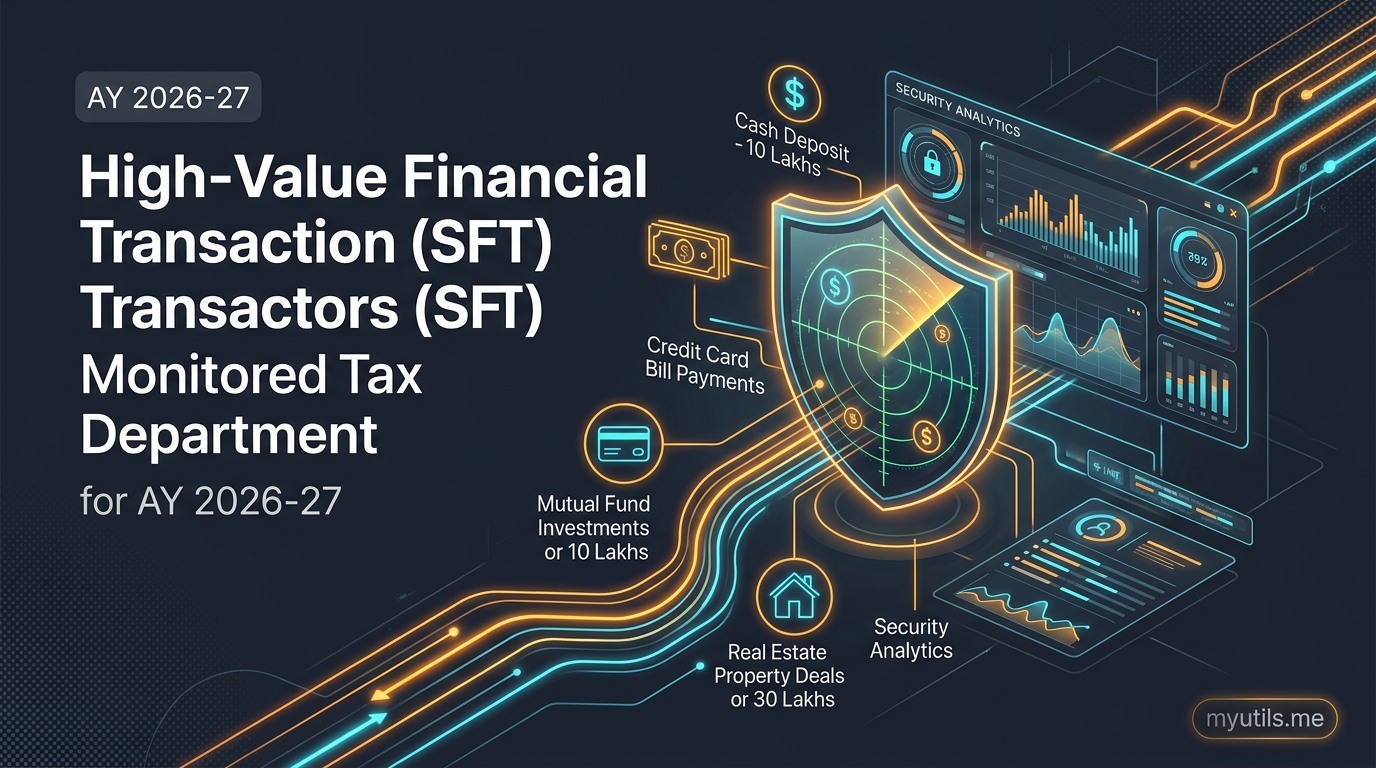
- Part E & F: High-value financial transactions (SFT) and property sale TDS.

What is the Annual Information Statement (AIS)?
The Annual Information Statement (AIS) gives a comprehensive 360-degree view of your financial transactions during the year, including non-TDS items reported by external financial entities:
- Savings bank interest and fixed deposit interest across all banks.
- Stock market trades (equity purchases and sales).
- Mutual fund investments and redemptions.
- Dividend income received from shares and funds.
- Foreign outward remittances under LRS.
- Purchase and sale of real estate.
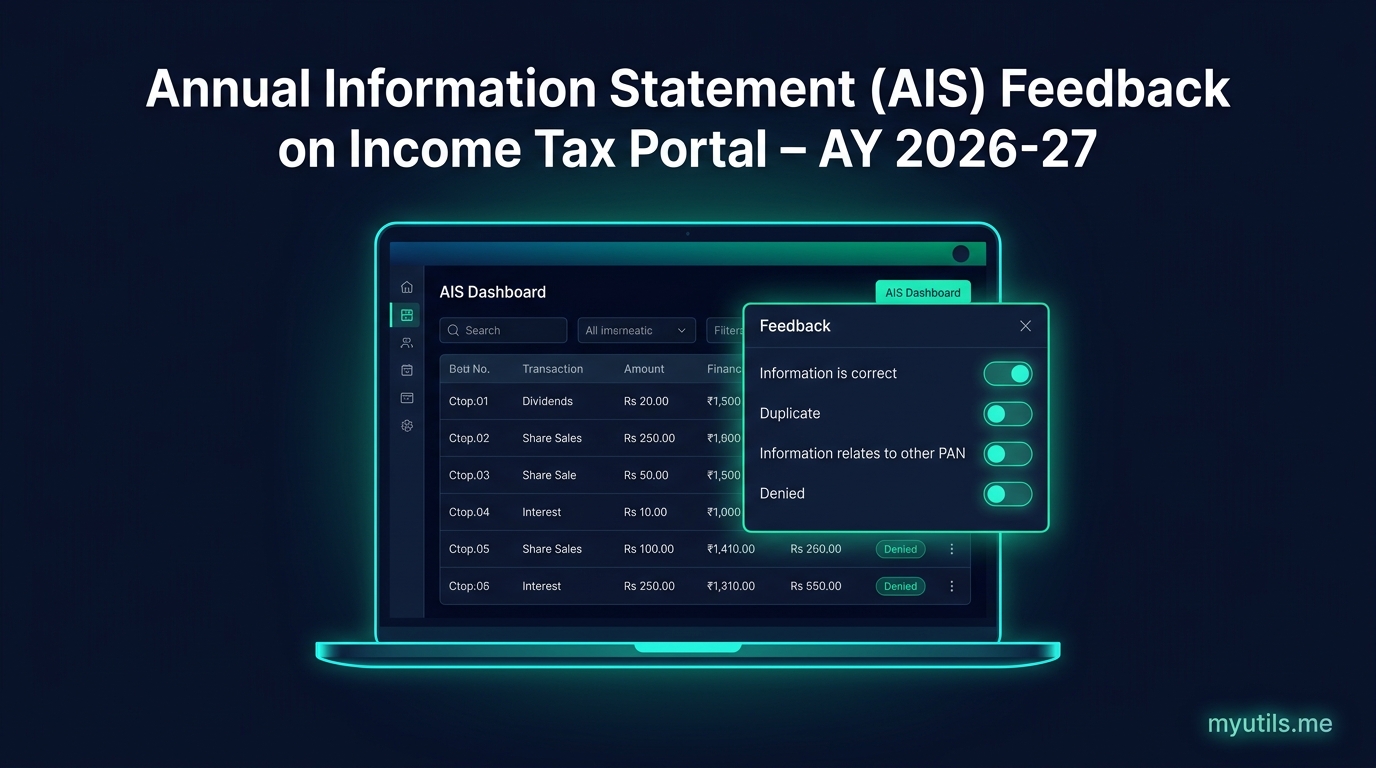
Feedback Mechanism in AIS
If any transaction in your AIS is incorrect, duplicate, or belongs to another person, you can submit online feedback directly in the portal to correct it before filing.
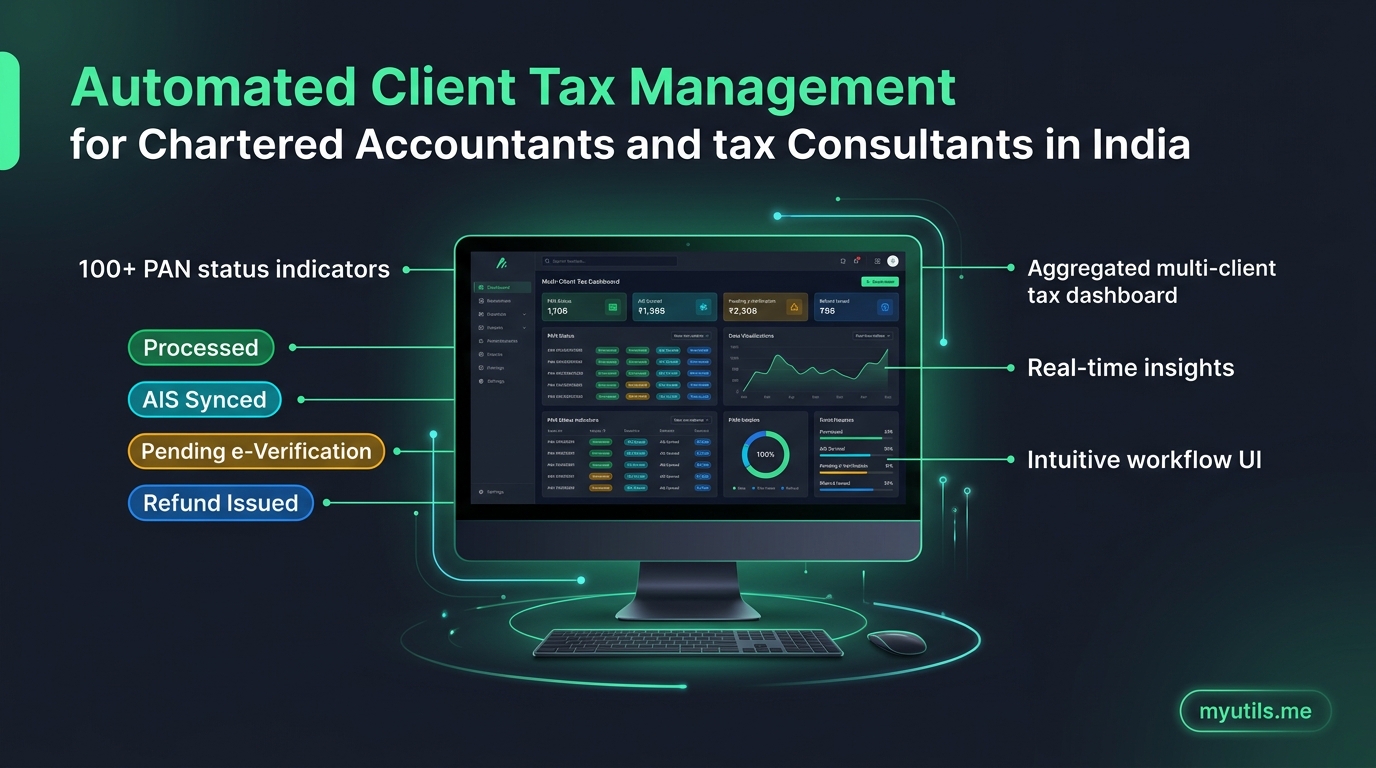
Tired of Logging into the Tax Portal for Every Single PAN?
Track all your client and family ITR refund statuses, intimation notices, and AIS summaries from one clean, automated dashboard.
What is Taxpayer Information Summary (TIS)?
The Taxpayer Information Summary (TIS) is an aggregated summary generated from your AIS.
- While AIS shows every individual transaction line by line, TIS summarizes them category-wise (e.g. Total Savings Bank Interest: ₹38,400).
- When you submit feedback in AIS, the TIS updates the Processed Value, which feeds directly into your pre-filled ITR form.
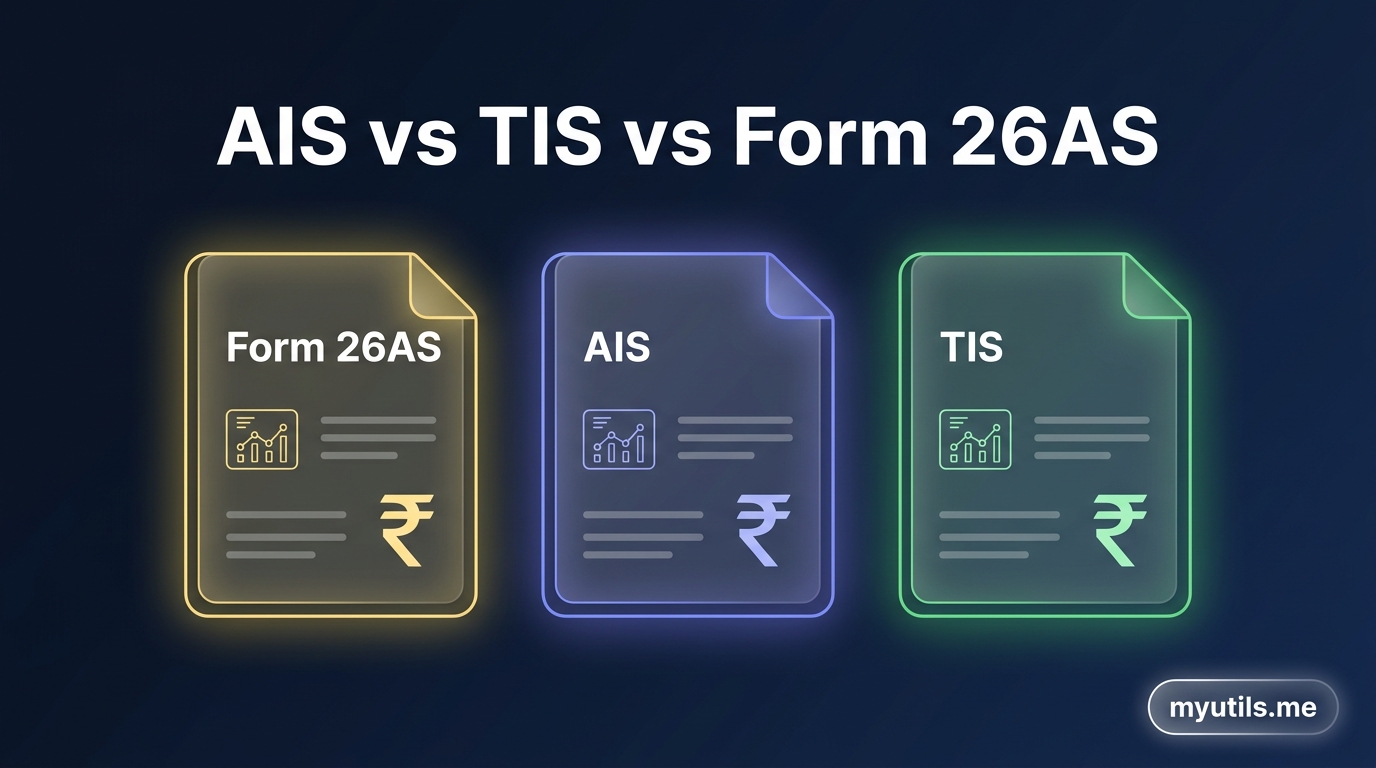
Summary Comparison: AIS vs TIS vs Form 26AS
| Feature | Form 26AS | AIS | TIS |
|---|---|---|---|
| Primary Scope | TDS, TCS & tax payments | All financial transactions & income | Category-wise summary |
| Data Detail | TDS/TCS entries | Granular transaction list | Aggregated totals |
| Feedback Option | No | Yes (Interactive feedback) | Updates after AIS feedback |
| Stock Market Trades | No | Yes (Buy/Sell turnover) | Yes (Aggregated capital gains) |
| Savings Interest | Only if TDS was deducted | Yes (Total interest) | Yes (Consolidated interest) |
| ITR Pre-fill | Fills TDS/TCS schedules | Source data | Feeder to ITR schedules |

Method 1: Check and Download AIS in myutils.me (Multi-PAN Sync)
Instead of logging in with individual credentials and captchas for every client or family member, you can view and export parsed AIS data directly from myutils.me.
Steps in myutils.me
- Log in to myutils.me: Visit www.myutils.me and log in to access your dashboard.
- Add or Select Profile: Click Add Profile to add a PAN (synced automatically upon addition), or click on an existing profile. To refresh existing data with new portal records, click Sync.
- Open AIS / TIS Tab: View all parsed transaction categories (Dividends, Interest, Stocks, TDS) aggregated automatically without manual calculation.
- Export Report: Click Download to export a clean PDF or Excel summary for tax filing.

Method 2: How to View and Download AIS & TIS from the e-Filing Portal
To view or download your AIS and TIS directly from the official portal:
- Log in: Visit the Income Tax e-Filing Portal and log in with your PAN (User ID) and password.
- Access AIS / TIS: - Direct Header Shortcut: On desktop, click AIS directly in the top blue navigation bar (or find AIS in the top-right menu on mobile). - Menu Navigation: Alternatively, navigate to e-File > Income Tax Returns > View Annual Information Statement (AIS).
- Redirect to AIS Portal: Click Proceed on the popup disclaimer to be redirected to the dedicated AIS compliance utility.
- Select Financial Year: Choose the relevant Financial Year from the dropdown.
- View or Download: - Click the Taxpayer Information Summary (TIS) tile to view consolidated income category summaries, or download the TIS (PDF). - Click the Annual Information Statement (AIS) tile to inspect granular transaction entries, submit online feedback, or download the AIS (PDF / JSON).

Method 3: How to View Form 26AS and Form 168 from the e-Filing Portal
To view your tax deduction credits under the Income Tax Act:
- Log in: Log in to the Income Tax e-Filing Portal.
- Navigate to Returns Menu: - On desktop: Click or hover over e-File in the top blue bar, then select Income Tax Returns. - On mobile: Open the top-right navigation menu, then tap e-File > Income Tax Returns.
- Select the Form: - Income Tax Act 1961 (Old Law): Click View Form 26AS, Income Tax Act 1961. - Income Tax Act 2025 (New Law): Click View Form 168, Income Tax Act 2025.
- Redirect to TRACES: Read the external redirection disclaimer and click Confirm to proceed to the TRACES (TDS-CPC) portal.
- View Tax Credit Statement: On TRACES, accept the declaration, select the Assessment Year and format (e.g. HTML / Text), and click View / Download (or export as PDF).

myutils.me
Official editorial and compliance research team at myutils.me, building automated tools for income tax return tracking, AIS/TIS reconciliation, and direct tax workflows.